Ability to Clone Yield Rule Sets
Stay is enhanced to allow users to clone existing yield rule sets available at a property and create new yield rule sets.
To support the enhancement, a new option, Clone Rule Set, has been added to the Yielding tab of the Rates screen (Settings ➜ Rates ➜ Yielding ➜ Clone Rule Set). When clicked, a new pop-up screen, Clone, appears that displays the following sections:
-
Details
-
Apply To
-
Rules
The following fields are displayed in the Details section:
|
Field |
Description |
|---|---|
|
Rule Set |
This is a mandatory single-select drop-down list that displays the active yield rule sets available at the property. Users can select the preferred yield set to be cloned. |
|
Active |
This flag must be enabled to activate the cloned rule set . |
|
Name |
This is a mandatory field that allows users to enter a unique name for the cloned rule set. The following message is displayed when users enter a name that already exists: Name is already in use. |
|
Code |
This is a mandatory field that allows users to enter a unique code for the cloned rule set. The following message is displayed when users enter a code that already exists: Code is already in use. |
|
Description |
This is an optional field that allows users to enter a description for the rule set. |
|
Minimum Rate |
This is an optional field that allows users to configure the lowest rate for the rooms. An information icon added next to this field displays the following message when hovered upon: Set the lowest rate your rooms may display as. This applies to yielded rates only. The rates may still be adjusted at the time of reservation. |
|
Yield By Room |
This is an optional field that allows users to select from the following options:
|
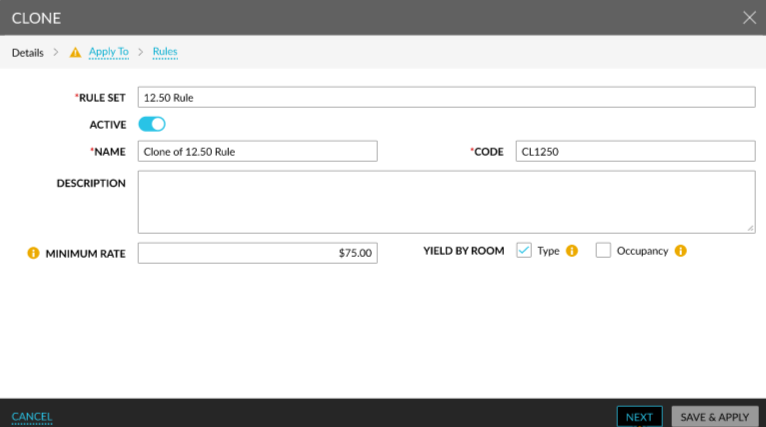
Once users enter values for the mandatory fields and click Next, they are navigated to the Apply To section that displays the following fields:
|
Field |
Description |
|---|---|
|
Start |
This is a mandatory field that allows users to select the start date of the rule set. |
|
End |
This is a mandatory field that allows users to select the end date of the rule set. |
|
Days of Week |
This is a mandatory field that allows users to select the days applicable for the rule set. |
|
Rates & Packages |
This is a mandatory, multi-select drop-down list that allows users to select the rate plans and packages applicable for the rule set. |
|
Room Types |
This is a mandatory, multi-select drop-down list that allows users to select the room types applicable for the rule set. The combinations of rate plans, packages, and room types selected must not overlap between the rule sets. |
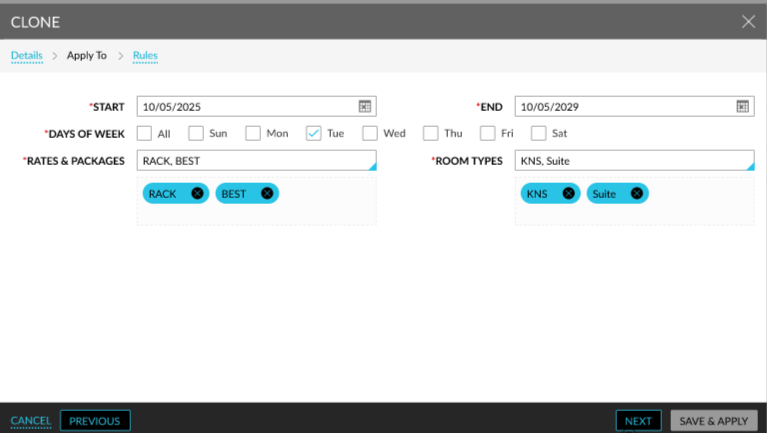
When users enter values for mandatory fields and click Next, they are navigated to the Rules section.
The Rules section allows users to define the levels for each rule within a rule set.
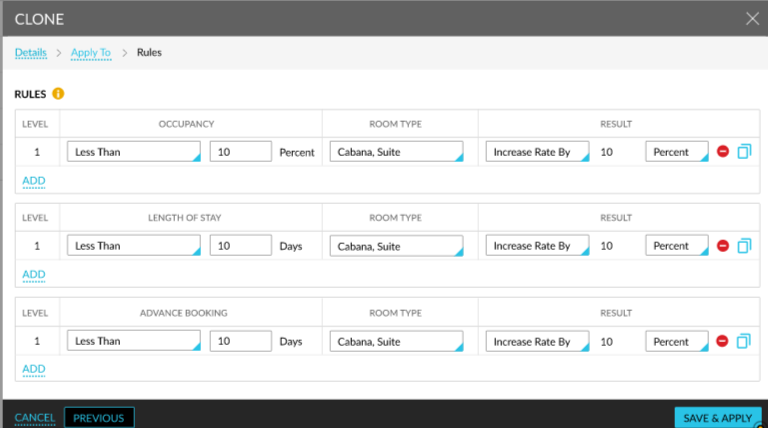
When users click Save & Apply, the selected rule set will be cloned. Once the cloning process is completed, the cloned rule set will be automatically applied across all dates, rates, and room type combinations configured as part of the rule.
Videos